The arcade classic is back, and there are two ways to ride: race other owners online, right in your browser, or run a full arcade row at home. One stable, every seat.
▶ Play Online Enter the Arcade at play.johnreevesiii.com • free sign-in • opens in a new tab Play at Home a full arcade row on one PC • your stable rides along Watch the live races as a guest, or take an open seat to play with your own stable. New here? Come say hi in our Discord community.Race Derby Owners Club against other owners online, right in your browser: no download, no setup. Watch the live cabinets, sign in with a free account, and take an open seat to play in real time with your own stable. Four 8-player cabinets are running now: three World Edition and one Japanese (DOC '99), so there's a seat on the version you want. When every seat is taken you can join the line and the next opening routes you straight in. There's an arcade-wide chat too, so you can talk between races.
▶ Enter the Arcade play.johnreevesiii.com (opens in a new tab) Join our Discord community chat between races, find people to play, plus records & helpAnyone can watch the live races. Taking a seat to play just needs a quick free sign-in.
The real thing can be run at home: the big two-screen race board plus a full row of player seats, all on one computer. The Host Pack was one setup that supported all four game versions, pointing at game files you supplied yourself. One desktop shortcut booted everything: the windows arranged themselves and the boards linked up on their own, no clicking through screens.
No account was needed to play: rental horses waited at every seat. Record tables started fresh, so the first wins put your names up on your own big screen, and Submit My Records could send your best times to the community master board.
The free companion that turns every seat into a card reader for the online stable. Run it next to a home setup and each seat gets a login code: a player opens play.johnreevesiii.com/seat-link on their phone, signs in (or creates a free account on the spot), enters the code, and their own horses ride at that seat. Tap a horse to insert it like a card, race, then Save and it gallops home to their online stable.
Your horses never live on anyone's computer. The online stable is the card; every seat is just a reader. Every save runs the exact same server checks as every cabinet in the lobby, so a horse raised in a living room counts exactly the same as one raised online.
Playing at someone's rig is free: rentals need no account, and riding your own stable needs only a free account. Pairing your own rig to the online stable is a Winner's Circle perk.
DOC is more alive today than it has been in years: a real, open, community-run home for everyone who loves the game.
For years, playing Derby Owners Club at home meant knowing the right person or paying for a modified machine. That era is over. This is the open, free home for everyone who loves the game: no gatekeepers, no catch.

Our promise to everyone who loves this game.
This is the DOC we all wanted: open to everyone, owned by no one, and here to stay.
Join the community on DiscordPlaying is instant: the whole arcade runs in your browser. No download, no install, no setup, and nothing to keep updated. You don't need to be a computer person: open the page, take a seat, and you're racing. The quick steps below walk you through it.
| Four cabinets | Four 8-player cabinets, all live: three World Edition and one Japanese (DOC '99). Anyone can watch the races as a guest, no account needed. |
| Open seating | Take any open seat to play. When every seat is full, join the line and the next open seat routes you straight in. |
| Arcade chat | An arcade-wide chat runs alongside the races, so you can talk between races and find people to play. |
New here? Our Discord community is the best place for help and to find people to race.
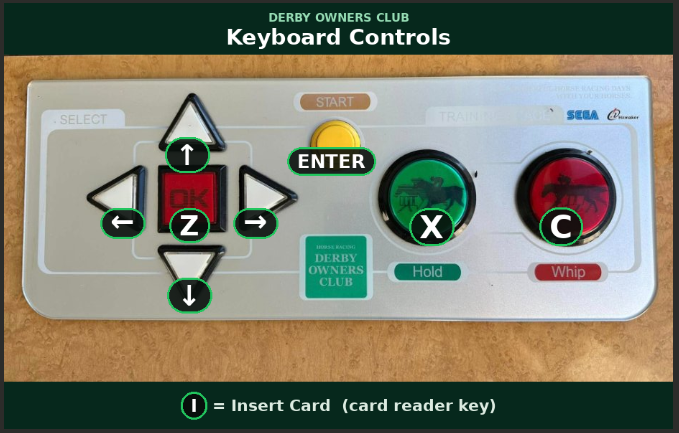
| Arrow keys | Move / choose |
| Enter | Start: create a horse / confirm |
| Z | Button A |
| X | Button B: back / cancel |
| C | Button C (also whip your horse during a race!) |
| V | Button D |
| I | Insert Card: load a saved horse |
Free companion tools that run right in your browser, nothing to install, and your data never leaves your PC.
Beat a course record at home and post your time to the master record board. Run the DOC Record Uploader and it finds your save and submits your best times in one click, or use the web uploader and drag your save in. Per-race Top 10 for World Edition Rev C, Rev D, and DOC 2000 (DOC ’99 keeps no record board in its save, so it can’t be tracked), ties go to whoever submitted first, Japanese names supported. If you already run a home setup it's built into the Host Pack (run Submit My Records); otherwise grab it below.
The whole toolbox, organized by what you want to do: Play & Plan (race simulator with win odds, foal predictor, feeding advisor, opponent scout, bond & personality), Theorycraft, and Mod & Inspect (card editor, ROM studio, string editor, card lineage). Includes The Hidden Rules — game mechanics decoded from the ROM that the game never tells you. Runs in your browser; load your own .card to analyze your horse.
Opens automatically with the game. Organize your stable, create & edit horses, and drop any of
them onto a player station, no card-reader needed. Hover for a quick view, keep retired
sires & dams for breeding, import/export as .raw, full katakana support.
Plan your stable: browse every CPU horse across all four versions, see each one's surface, distance, running style and standout abilities, and breed any sire & dam to project the foal before you spend a credit. ROM-verified data; Japanese names in katakana with English.
Go deeper and edit the game's built-in data: the 244 CPU horses & stats, breeding stock, race & track names, and on-screen text, then save it back as a valid ROM. Handles all four versions and edits the Japanese ones natively (Japanese text, romaji, optional translate).
Have real DOC player cards? This step-by-step guide shows how to scan a physical card to a
.raw backup with an MSR206 magnetic reader/writer, with photos and a demo
video. Includes the downloads you need: the MSR206 write program and the Super Juicer
spreadsheet. (Step 1 is a small hardware mod; the rest is software.)
| Page won't load | Refresh the page, and make sure you're on a current browser (Chrome, Edge or Firefox). |
| No open seat | Every seat is full. Join the line and the next open seat routes you in, or watch until one frees up. |
| Can't take a seat | Taking a seat needs a quick free sign-in. Watching the races doesn't. |
| Choppy or slow | The arcade streams live, so a steady connection helps; closing other heavy browser tabs can too. |
| Home rig setup | The Host Pack is not being handed out at the moment. If you already run one, setup questions still get answered fast in our Discord. |
Still stuck? Ask in our Discord and we're happy to help. New to the stable tools? The Owner's Manual has a full walkthrough.
 DOC
DOC