Heads up: Step 1 is a small hardware modification of the reader (clipping two plastic nubs). Go slowly and at your own risk. The rest is software only.
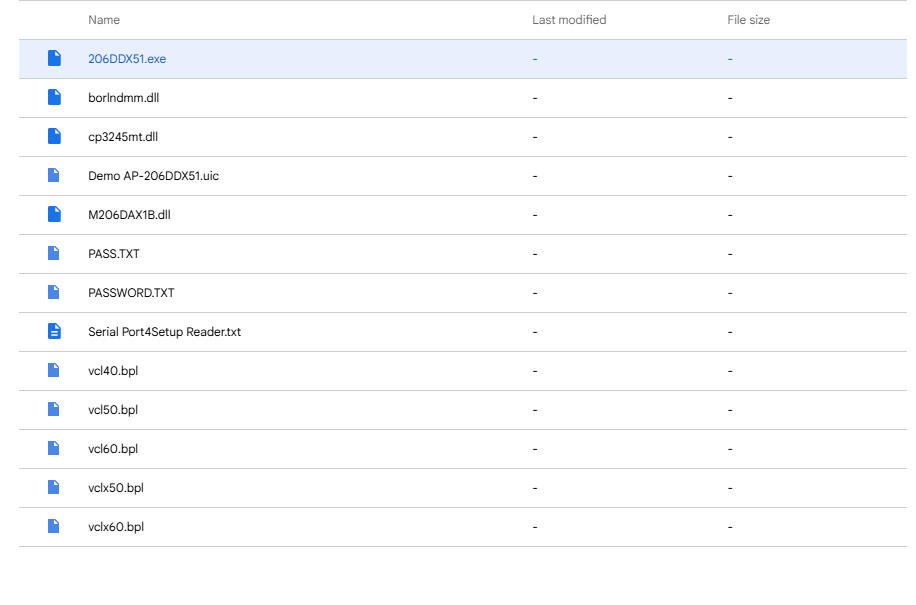
MSR206 Reader/Writer Utility Program: the 13-file software package.
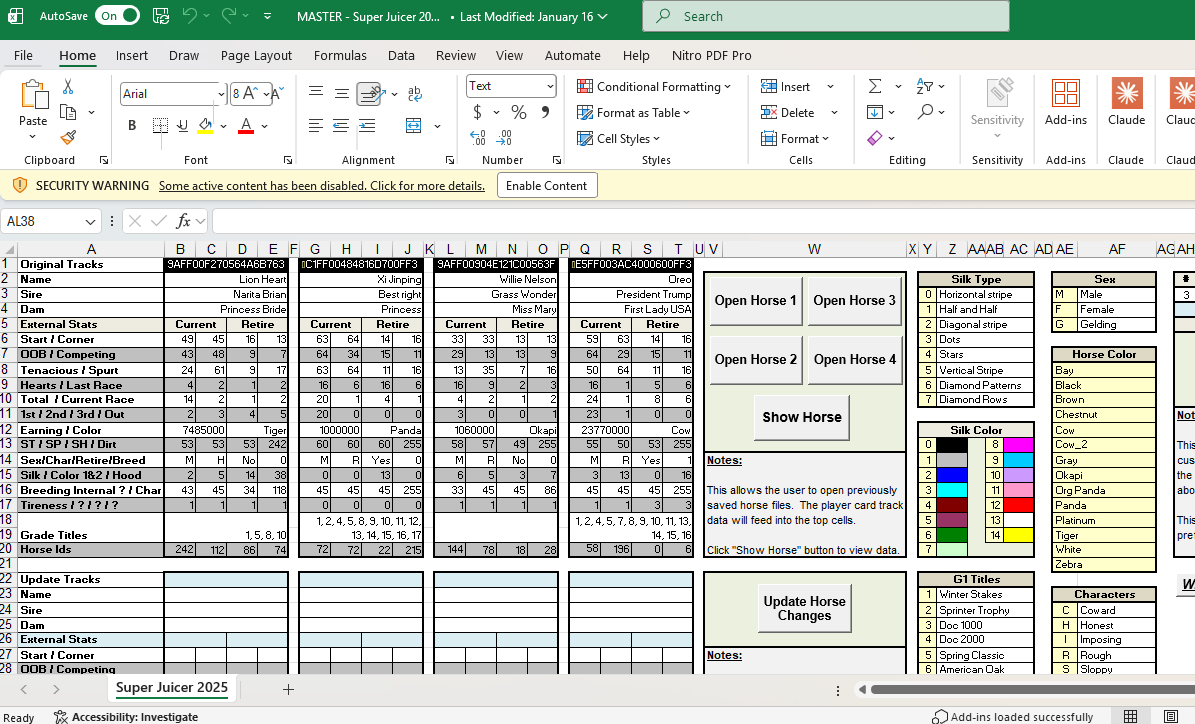
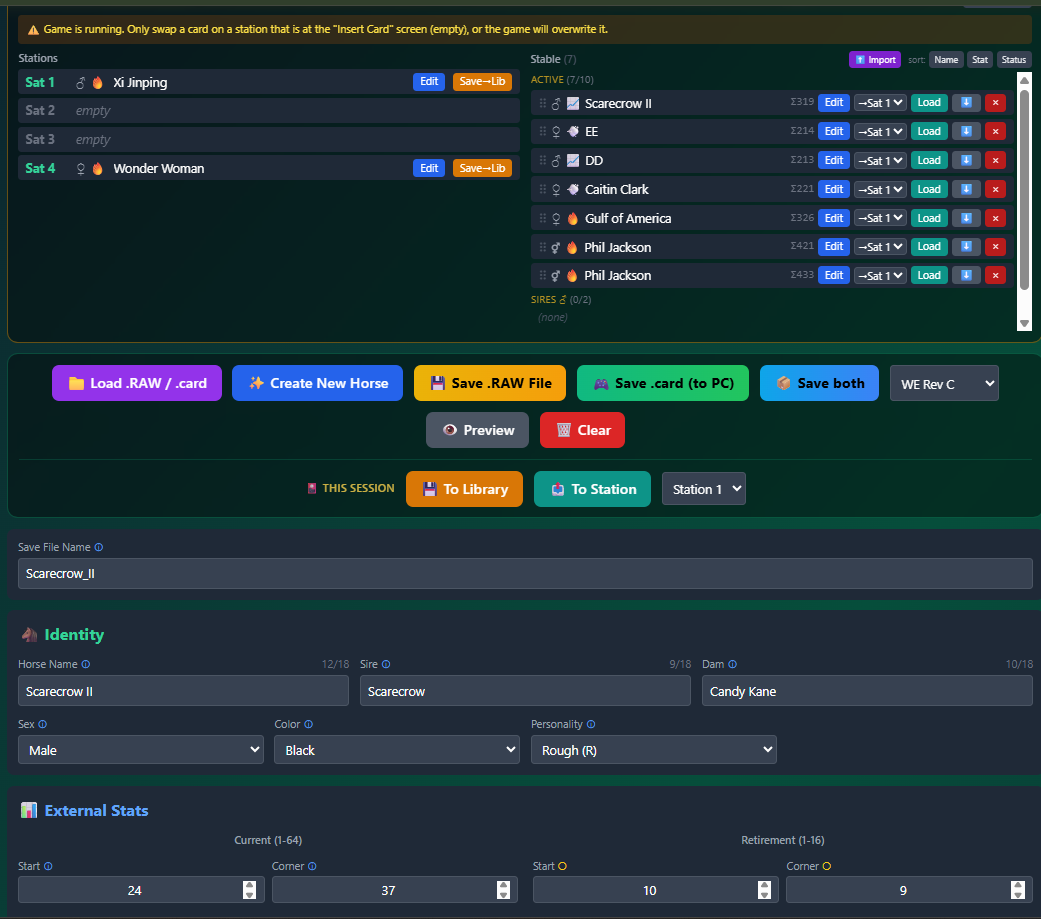
Super Juicer Spreadsheet or Stable Manager: software to open and edit the .raw files.
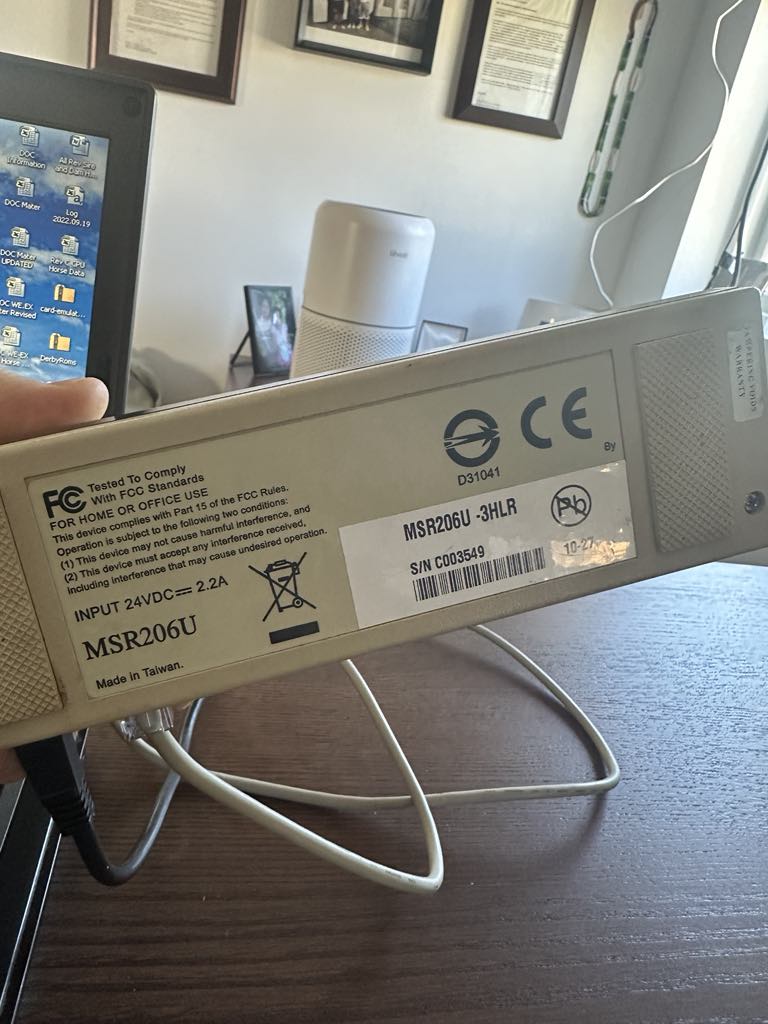
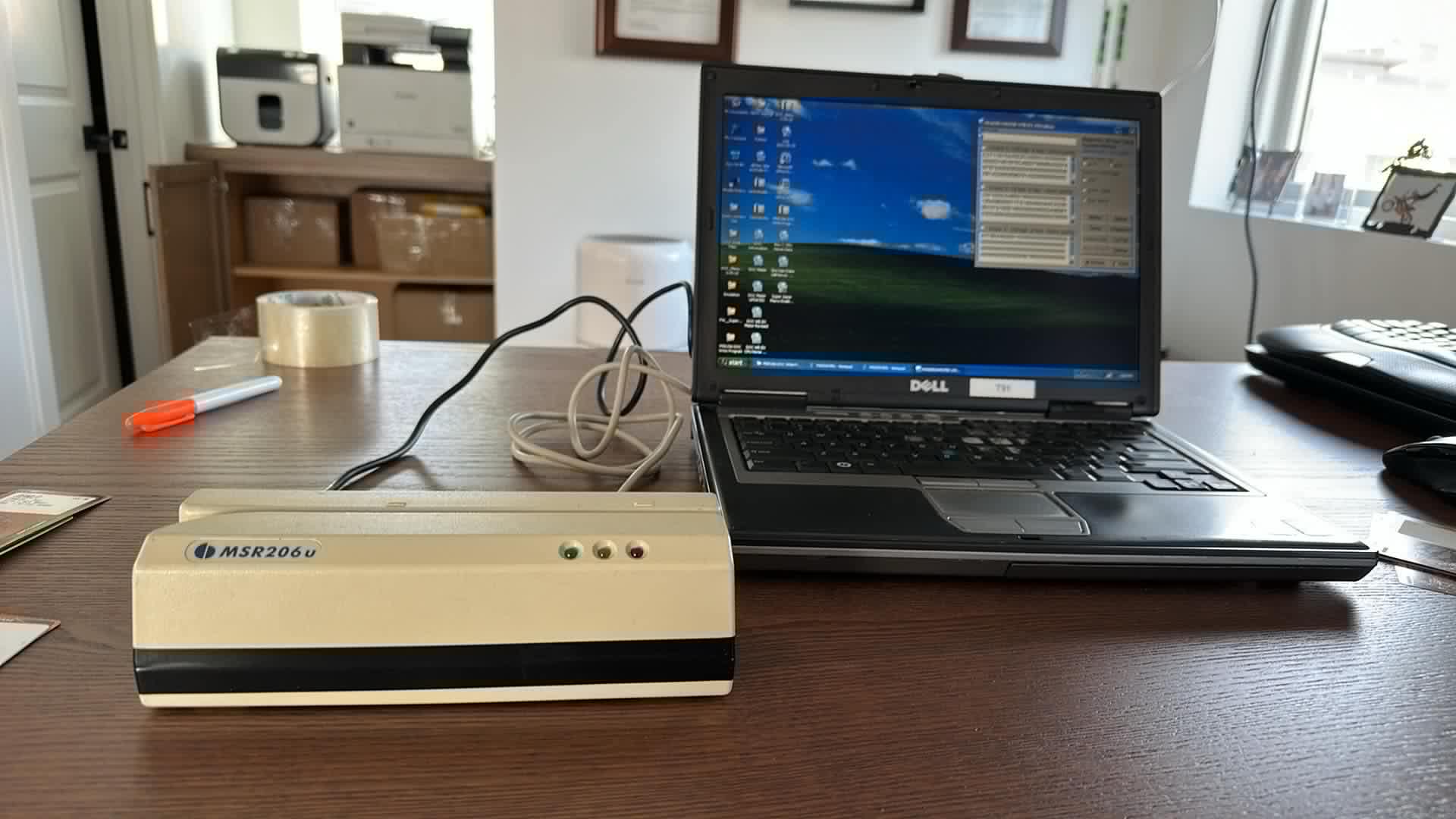
MSR206u 3HLR reader/writer: the model used in this guide.
Reader requirement: Other models exist, but the unit must be able to read and write 3 tracks at 210 bpi.
Step 1: Modify the Reader
The read/write head sits too low to reach the thin DOC card. You will raise it by clipping the locating nubs off the head.
Remove the screws hiding under the rubber feet.
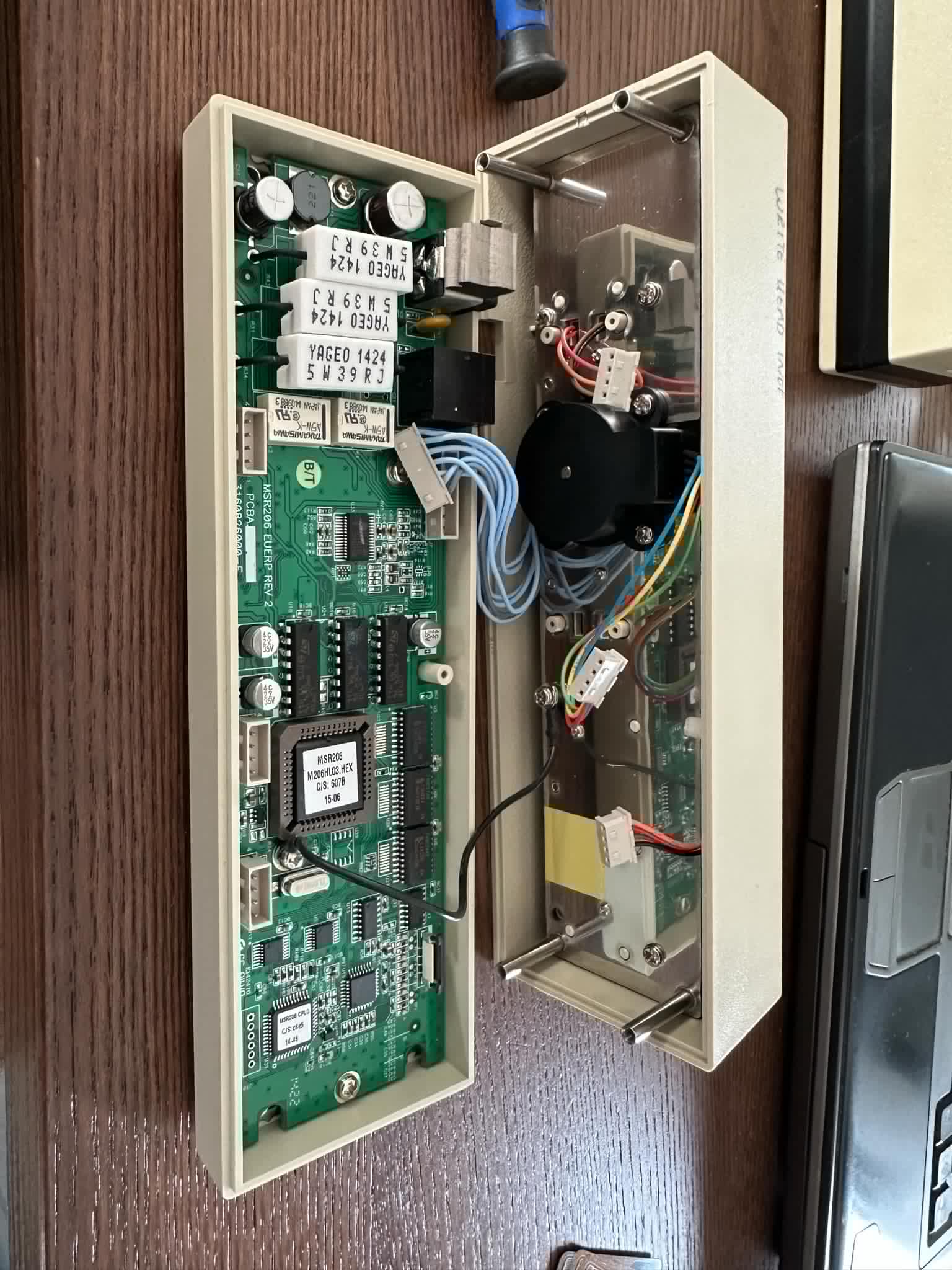
With the screws out, the unit looks like the photo below. Be careful: the brown ribbon cable connecting the read/write head has very little slack.
Carefully disconnect every connection and note where each one goes.
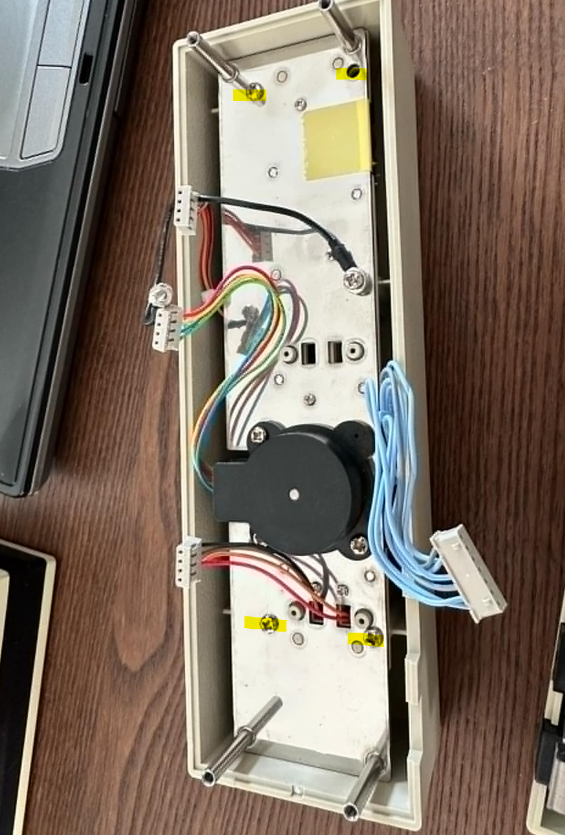
Remove the highlighted screws.
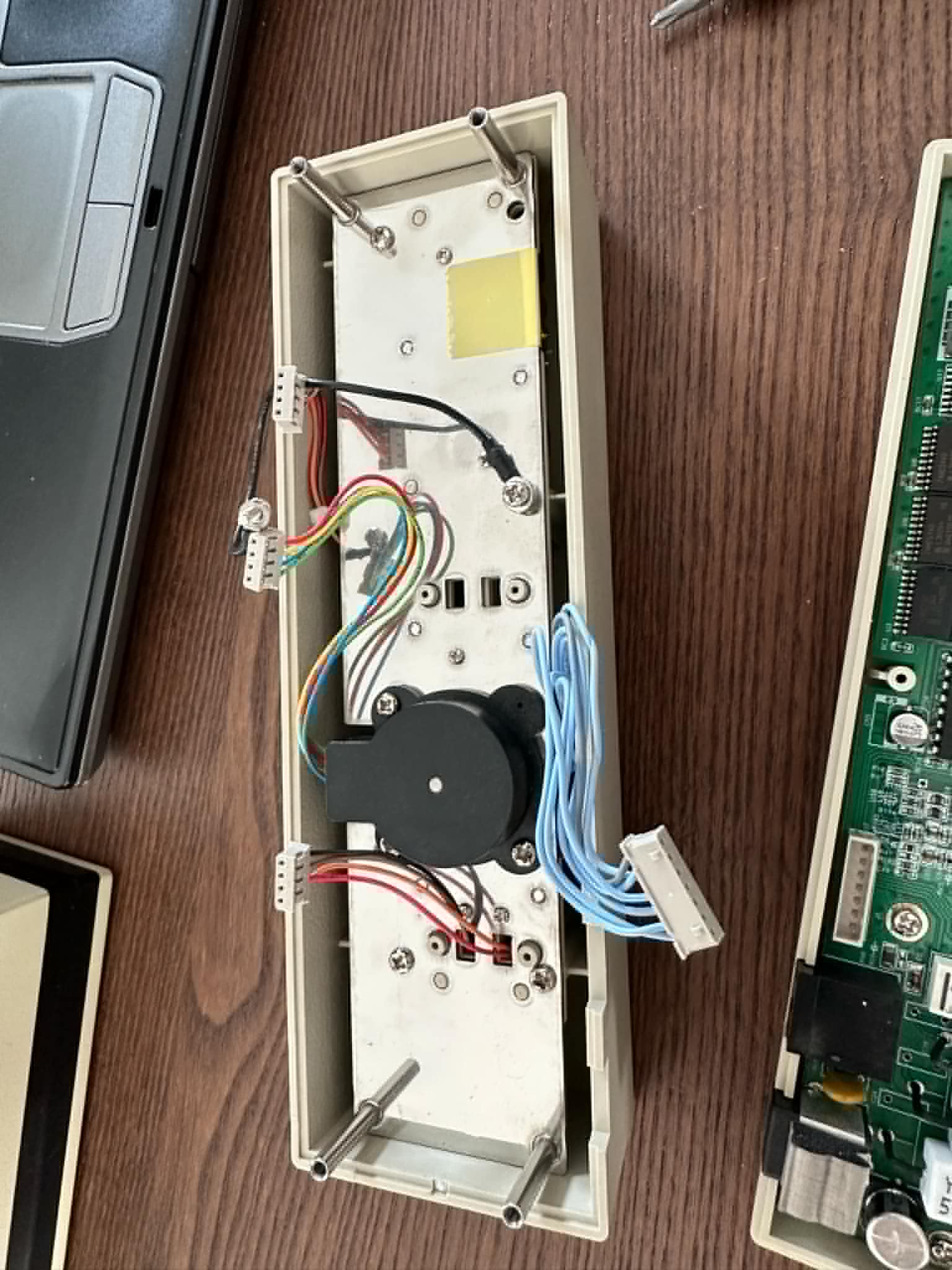
The unit should separate. Yours may use a ribbon cable or individual wires; work slowly so you do not sever the cable like the demo unit shown.
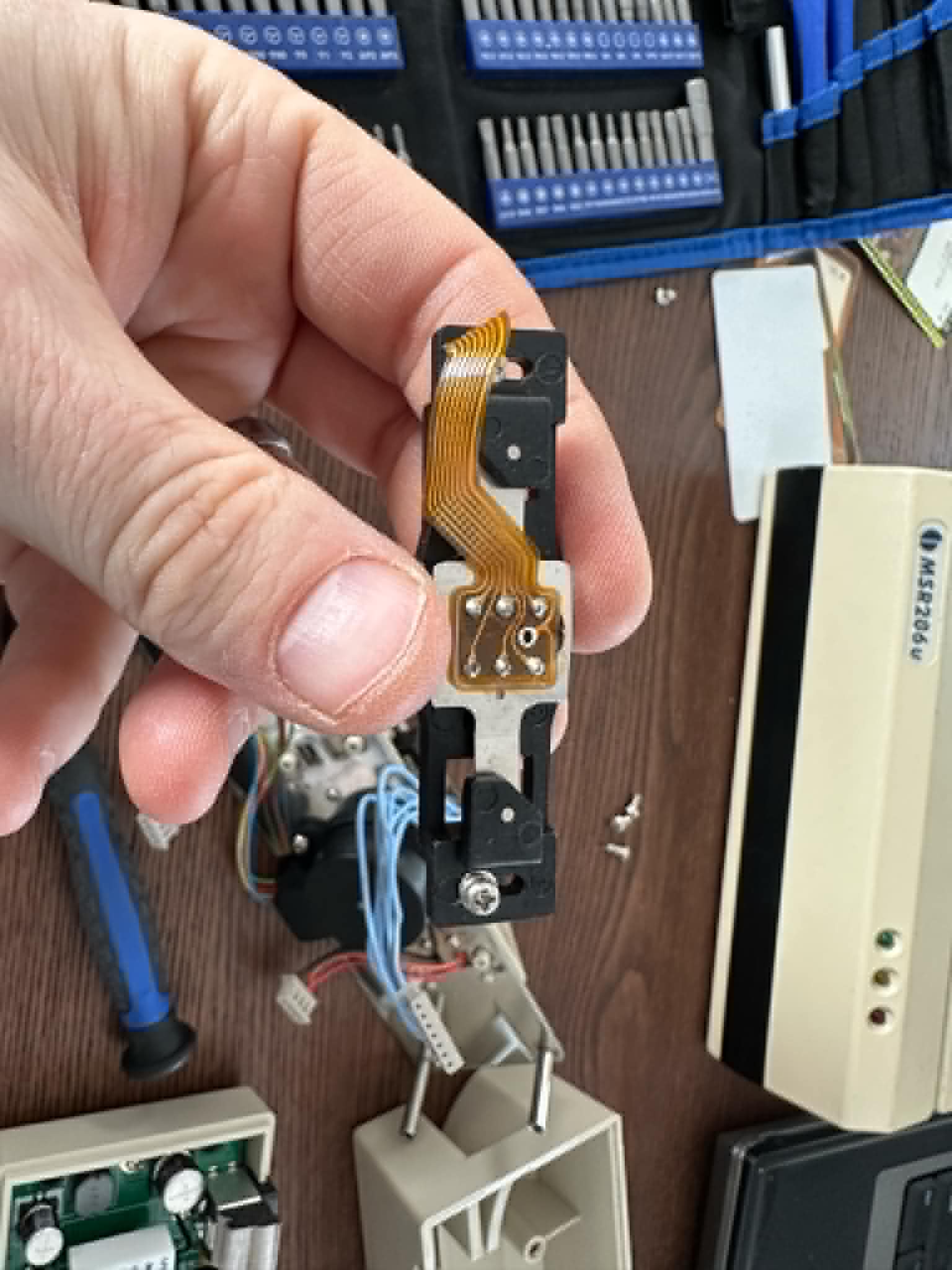
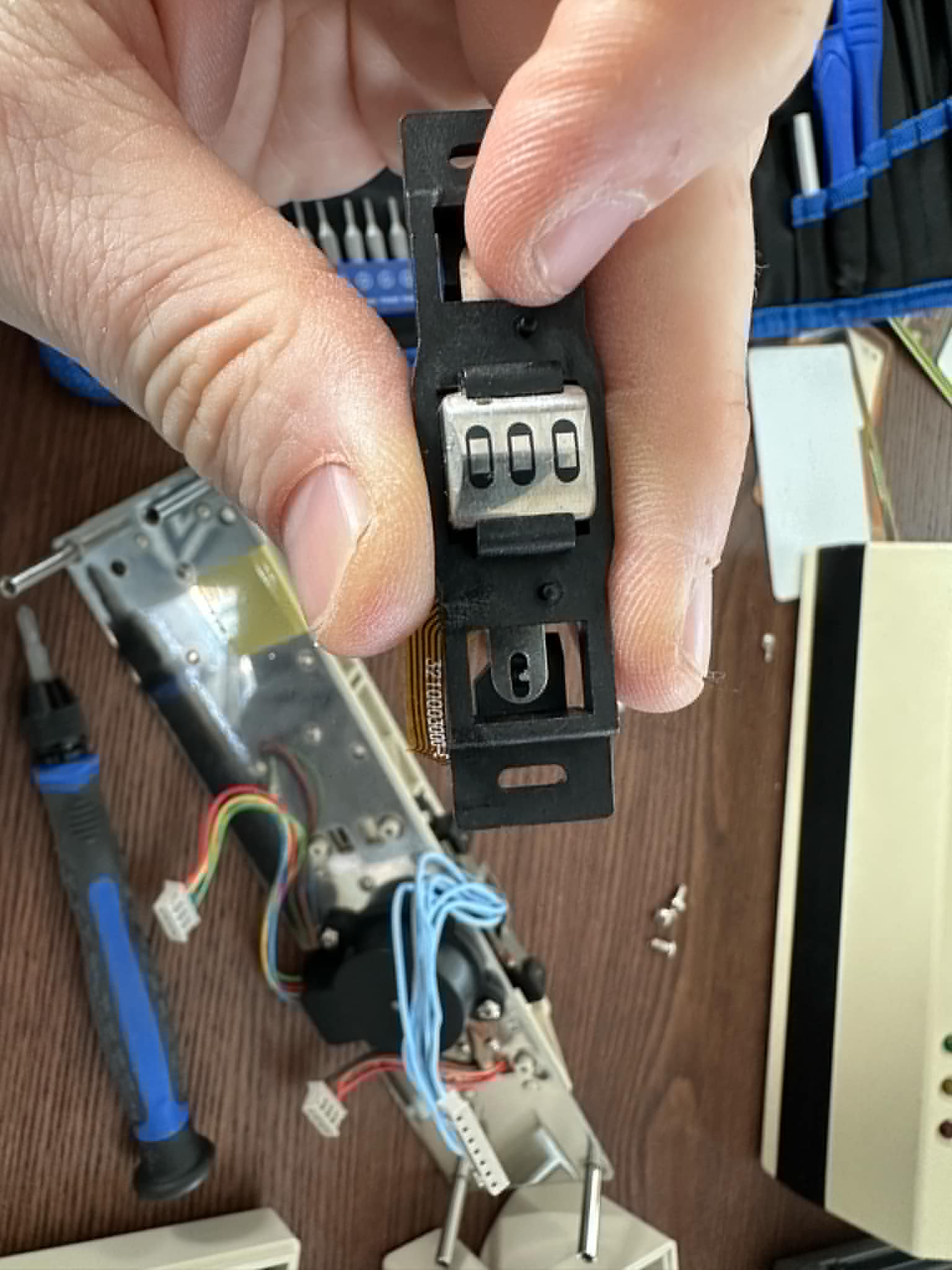
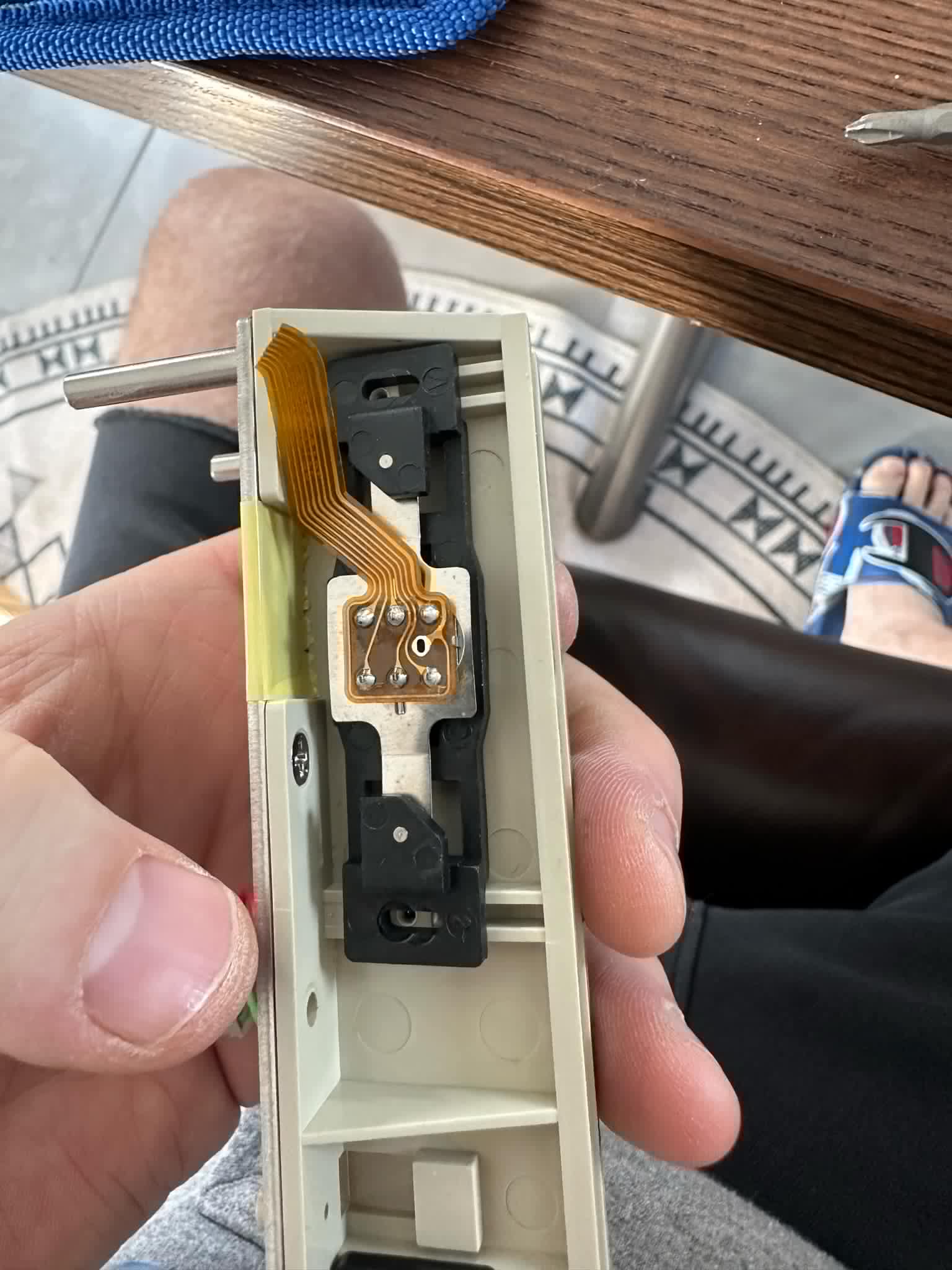
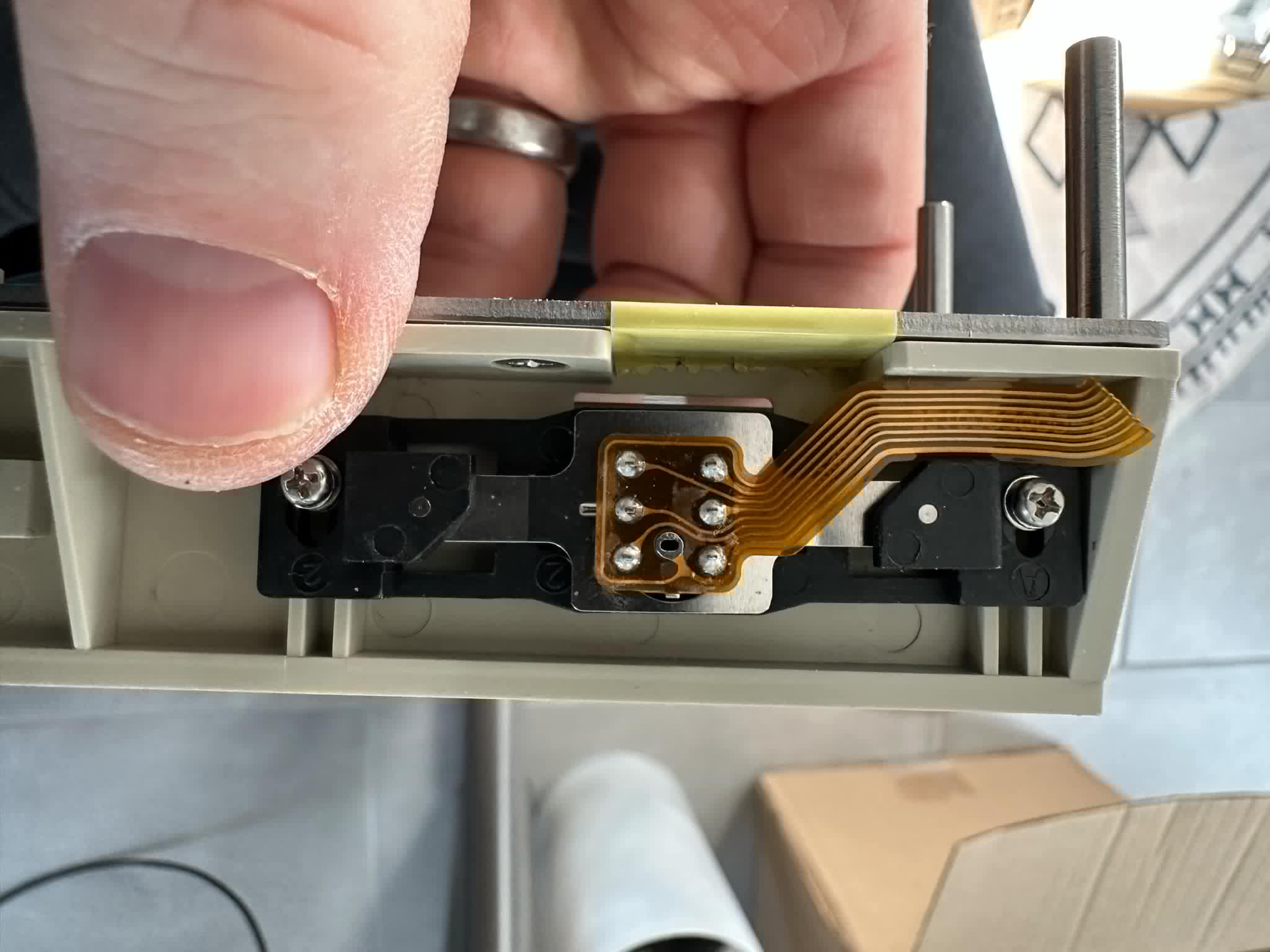
Remove the screws holding the black read/write head. Small nubs hold it in place; lift it straight toward you and it will drop out.
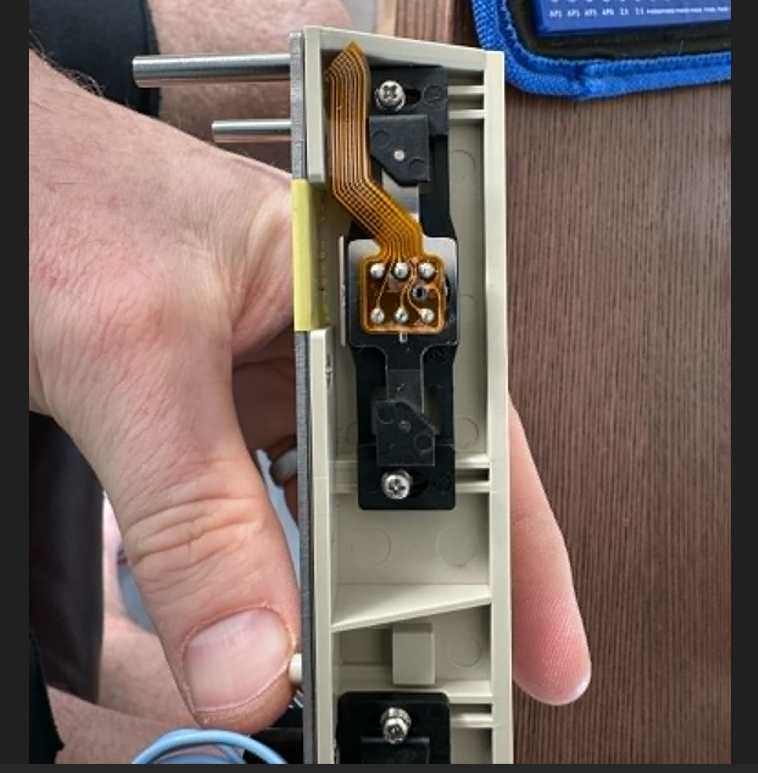
Flip the black bar over. The finger in the photo points to the two nubs.
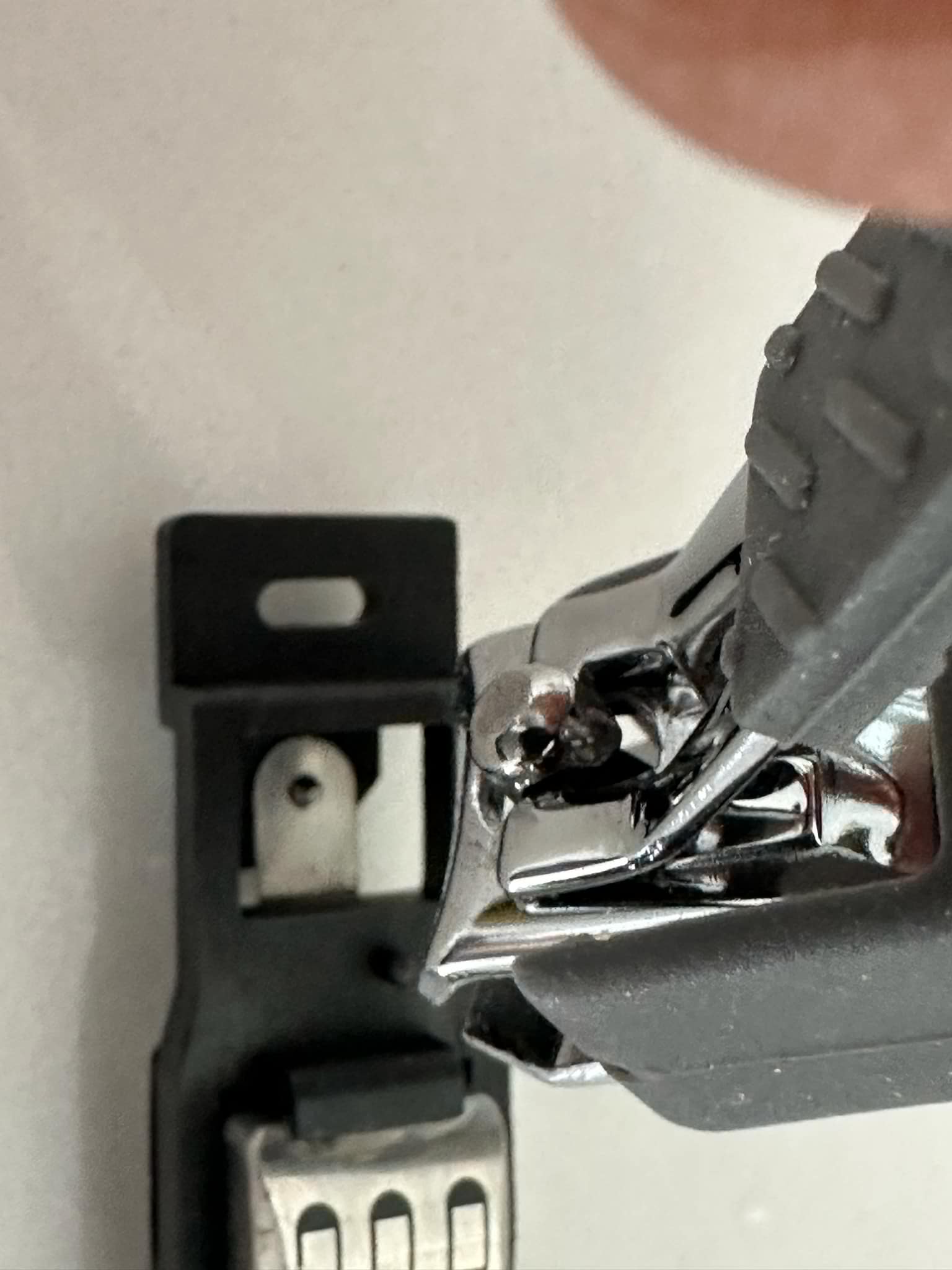
Get a pair of nail clippers.
Clip off the nubs.
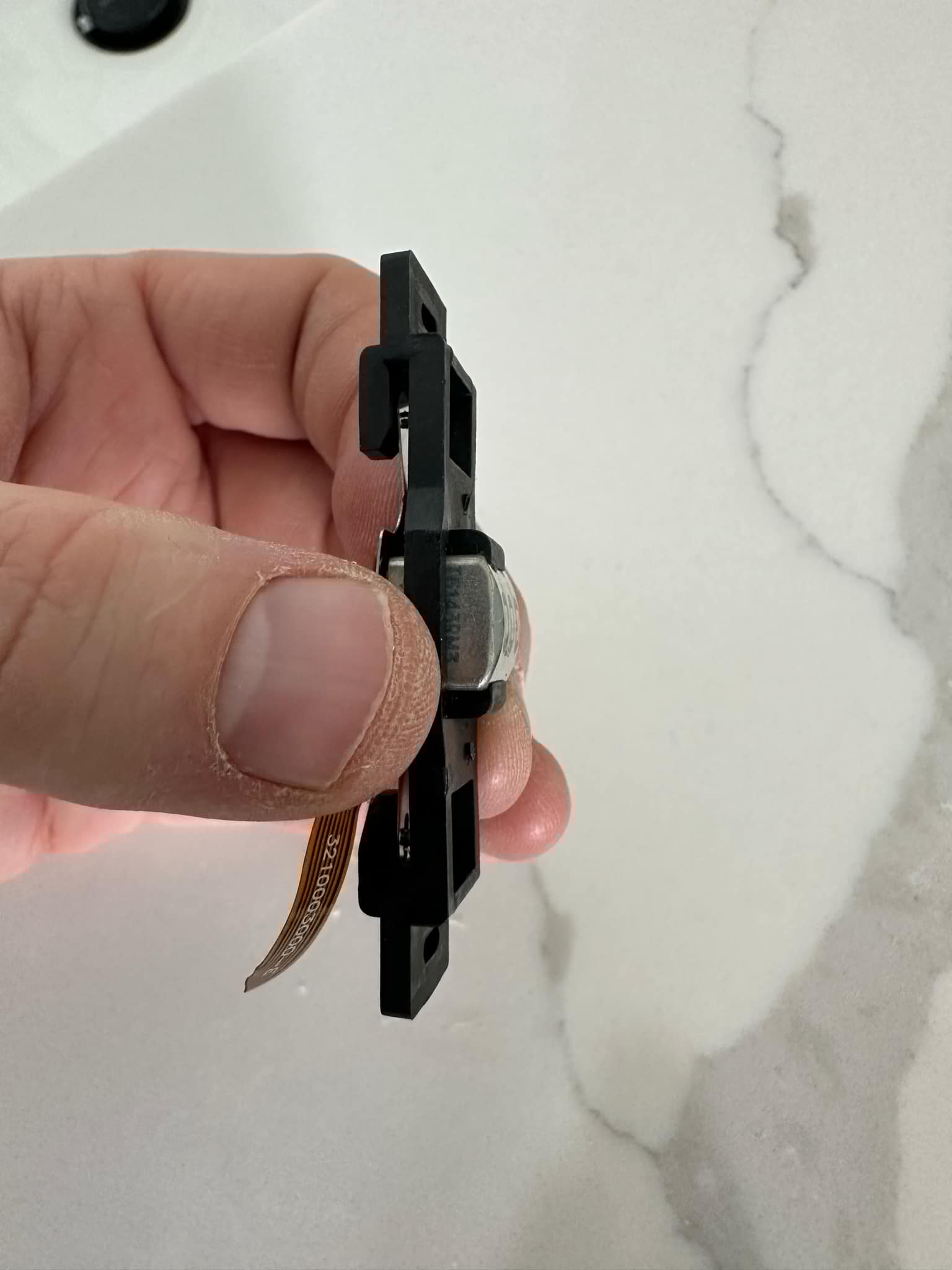
Reassemble the head. With the nubs gone, slide the read/write head as far as it will go while still allowing the screws to seat. This raises the head higher than the original feet allowed.
Confirm the head now sits higher than before.
Finish reassembly. The unit fits back together as before, even with the head raised.
Do not touch the other head. The head with the blue wires is the erase head; leave it alone.
Step 2: Configure the Software
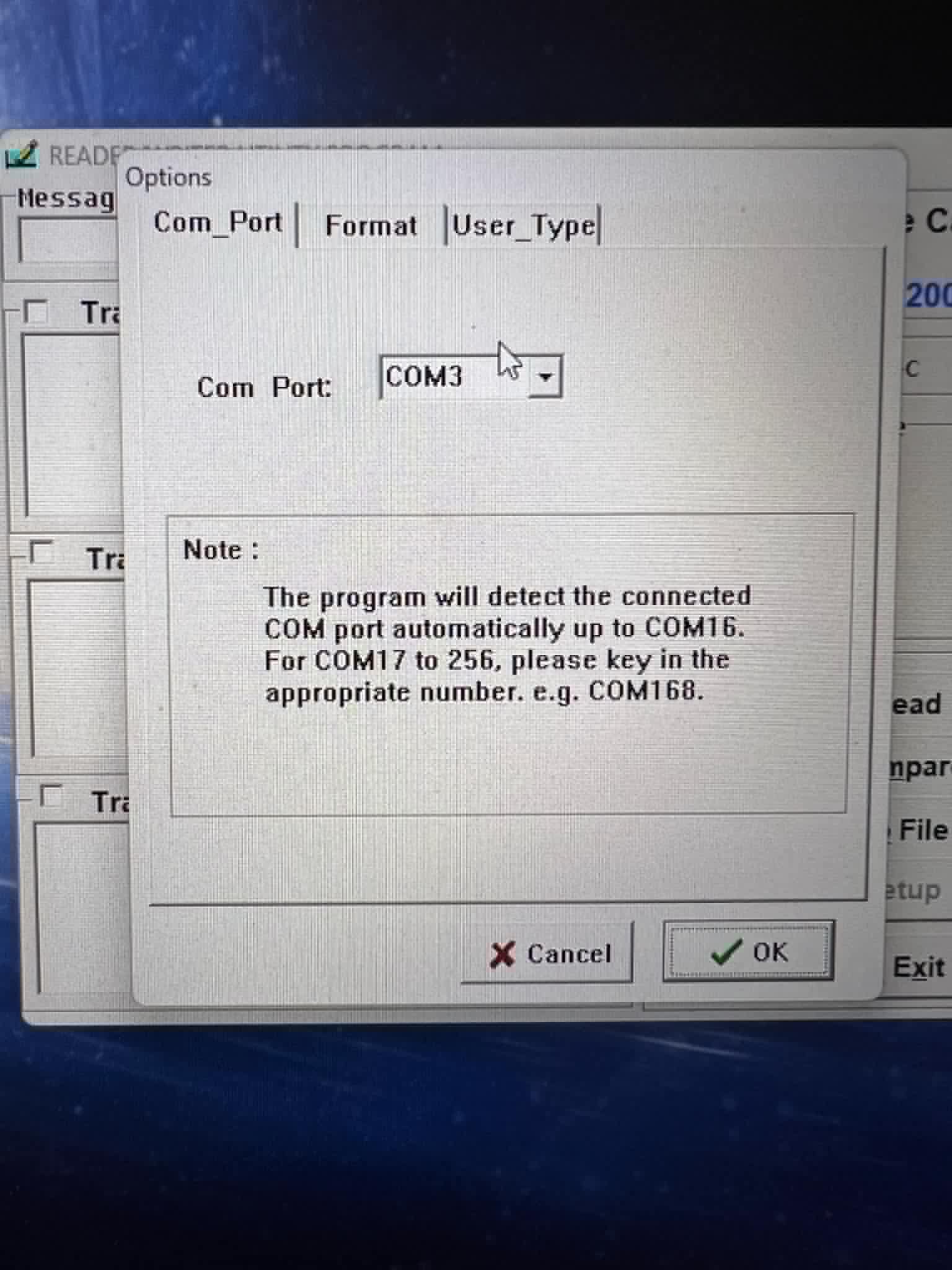
Plug the reader into your computer and launch the Reader/Writer Utility Program. The first run prompts you to set a password. Select your COM port; this can take some hunting, since it changes with the USB port you use.
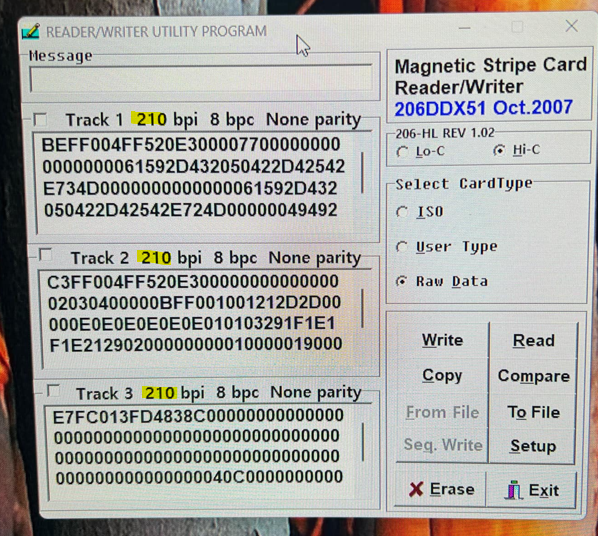
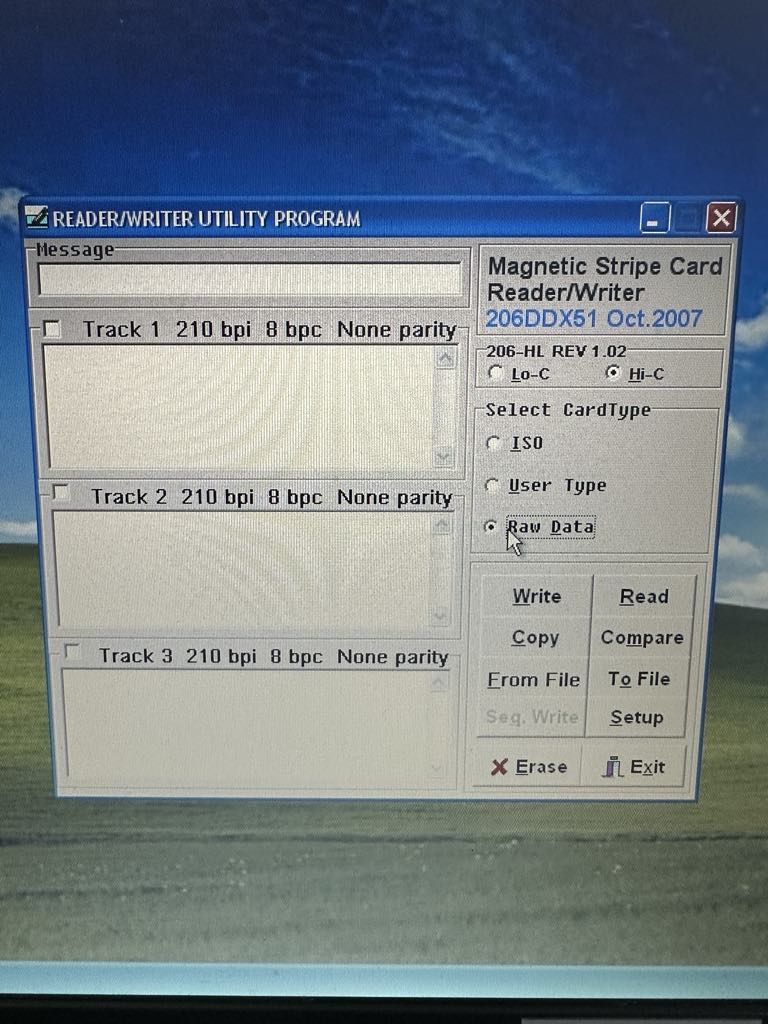
The main window should look like this.
Set the read mode: click Hi-Co, then click Raw Data. (The Raw Data setting is why the backups are .raw files.)
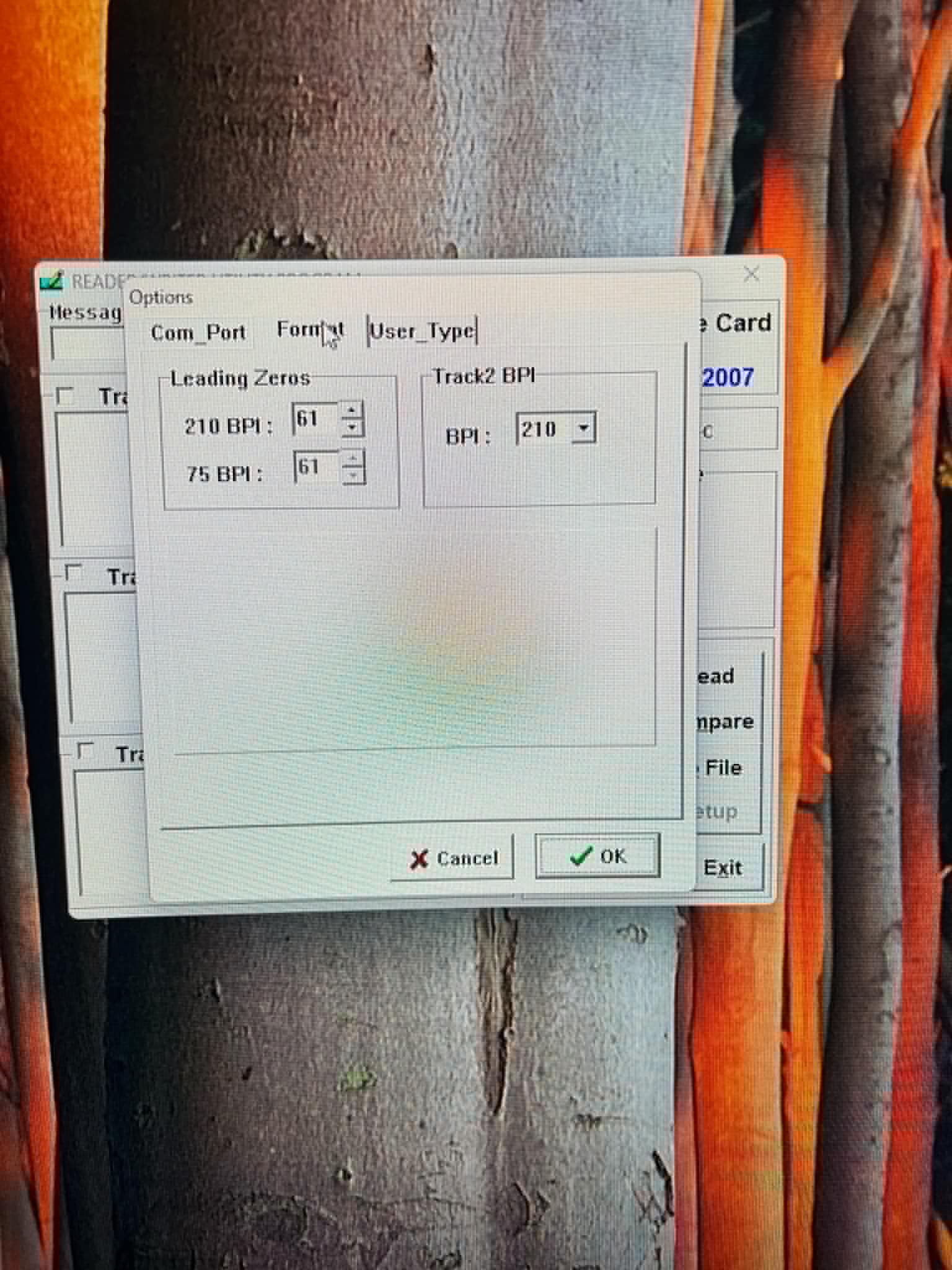
Click Setup. Confirm Com_Port matches the port from step 1, then under Format set Leading Zeros = 61 (for both) and Track 2 = 210.
Wrong reader warning: If the Track 2 dropdown is greyed out and stuck on 75 with no 210 option, you have the wrong reader type and it will not work.
Click OK.
Step 3: Scan the Card
Watch the demonstration videos first; they show the scanning motion. How the card is placed and how it is swiped both matter.
Back the DOC card with a firm old hotel key card, or a blank card that came with your reader. The DOC card is too thin to feed on its own, so place it on top of the backing card and swipe the two together.
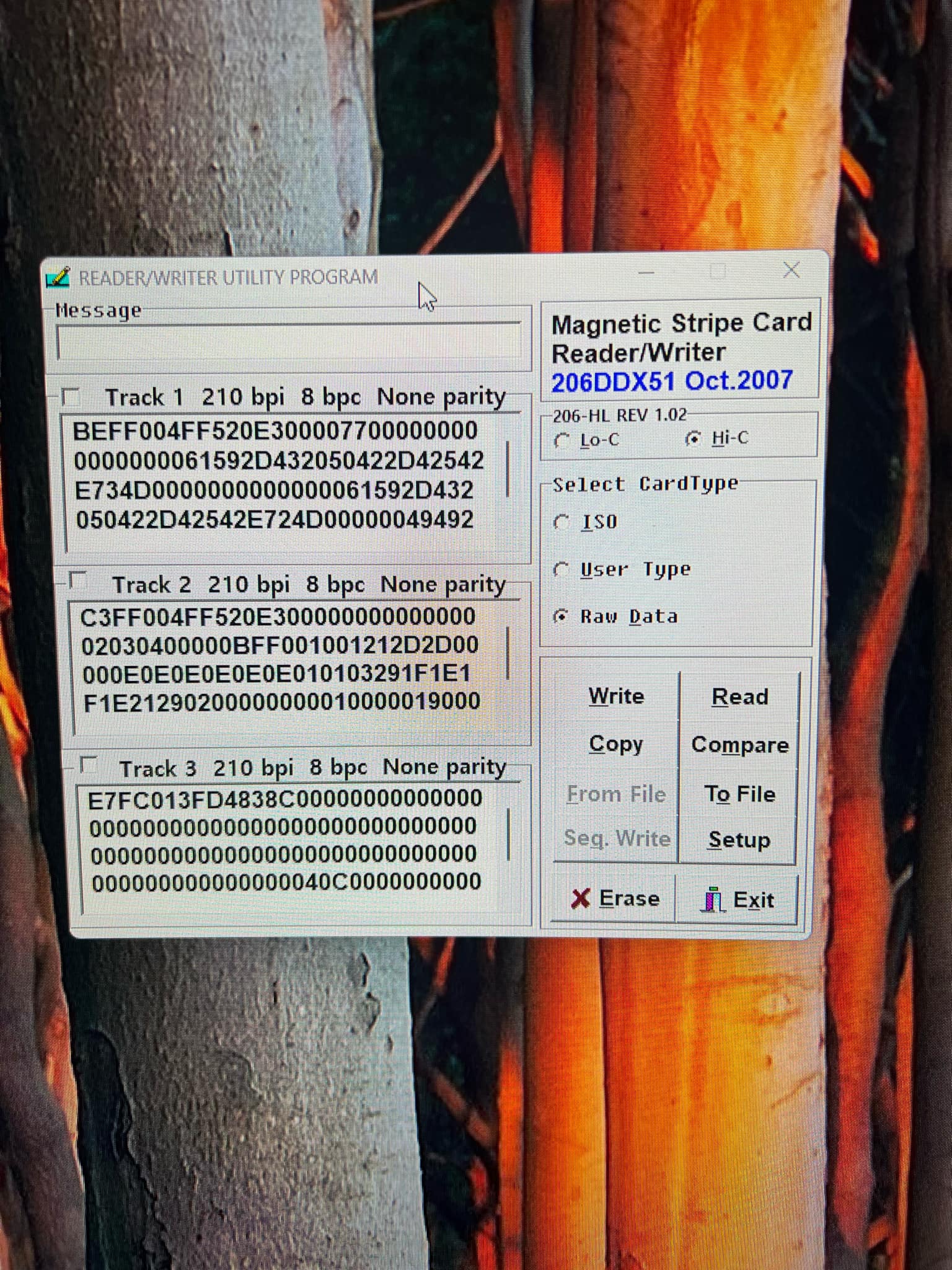
Click Read. The track data should appear in the utility window.
Listen for the audible tone that signals success or failure.
Read: reads the card and displays its data on screen.
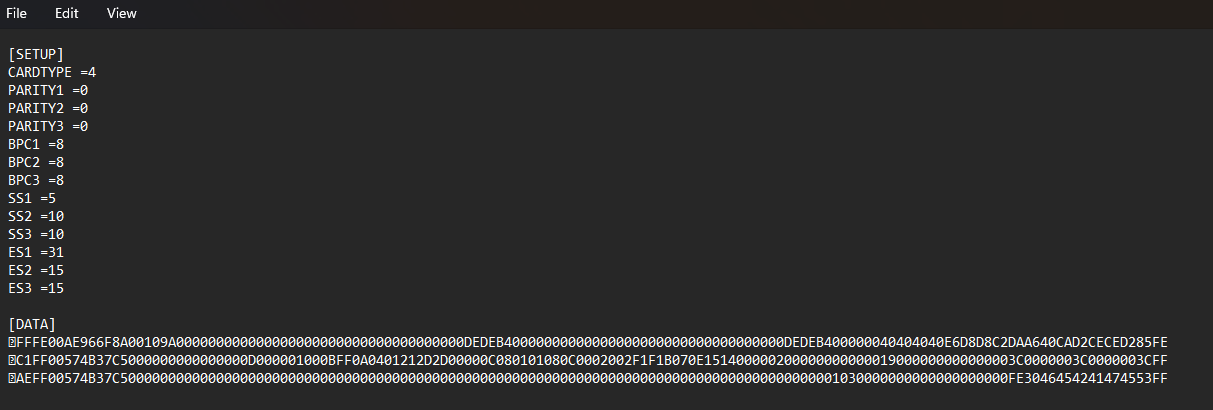
Write to File: saves the card data as a .raw file.
The .raw file opens in any text editor and looks like the example above. The remaining fields are self-explanatory.
Step 4: Verify the Backup
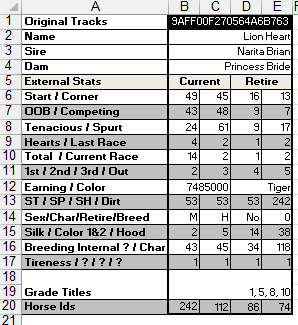
Open the Super Juicer spreadsheet (or Stable Manager) and choose “open horse.”
If the card scanned correctly, your horse data appears.
You have backed up your first physical player card.
Important: To use a card in a DOC machine, you need the .raw format, not the .card format.
 DOC
DOC